Fast Answer: GitHub Profile Trophy Is a Small README Achievement Card
GitHub Profile Trophy usually refers to the open-source trophy card service that renders achievement-style badges for a GitHub username. It is useful when a profile README already has a clear intro, project proof, and contact path, then needs one compact visual layer to show contribution milestones.
It is not a replacement for a good GitHub profile README template. If the README does not explain what you build, a trophy card will only add decoration. Start with a short profile summary, selected projects, and proof links. Add the trophy card after the visitor already knows why the profile matters.
The best version is restrained: choose a readable theme, set the GitHub username, control columns and rows, and hide trophy ranks or titles that distract from your real story. A small trophy card near the activity section works better than a huge card at the top of the README.
Use this page for trophy-card setup and placement. Use GitHub streak stats when you want to explain visible consistency, profile-3d-contrib when you need a generated 3D README image, and GitHub City when you want visitors to explore a live 3D contribution city.

How to Add GitHub Profile Trophy Without Making the README Noisy
The setup is simple, but the editorial decision is important. A trophy card pulls attention because it uses icons, ranks, and color. Put it where that attention helps the visitor understand your activity, not where it pushes project proof below the fold.
Before adding the card, open your profile README on desktop and mobile. If the first screen is already full of badges, animations, and remote widgets, remove something before adding another visual.
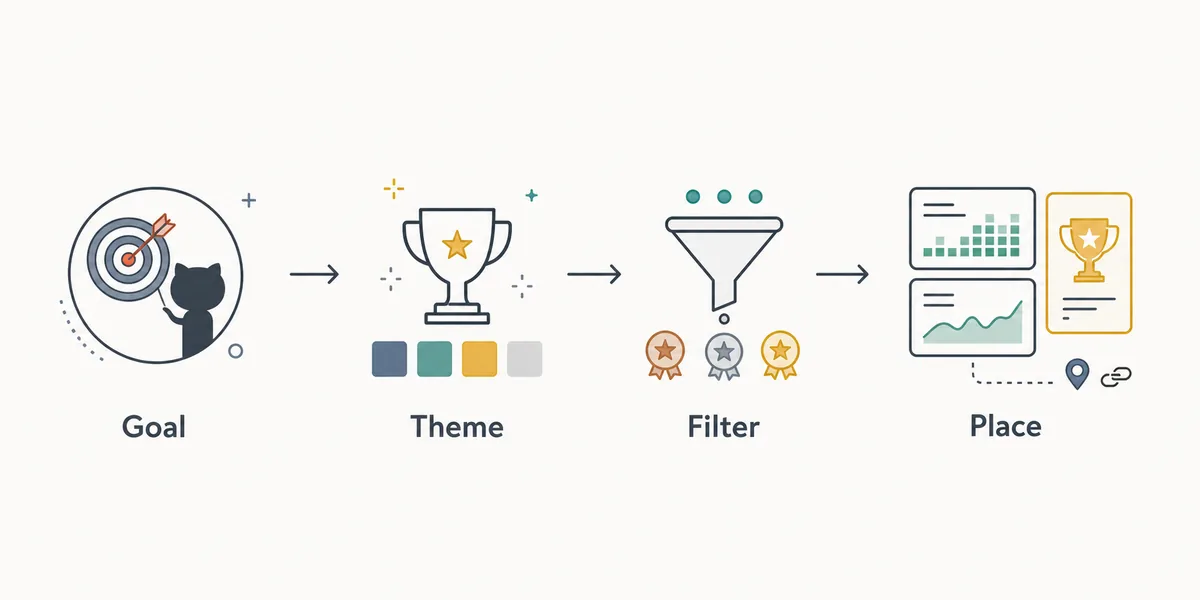
Confirm the README goal
Decide whether your profile is for hiring, open-source support, student progress, or portfolio storytelling. The trophy card should support that goal.
Start from the official repository
Use the maintained GitHub Profile Trophy repository or hosted card URL, then set the username parameter carefully.
Choose a quiet theme
Pick a theme that remains readable in GitHub light and dark modes. Avoid colors that clash with your README badges or project cards.
Limit rows, columns, ranks, or titles
A compact card is easier to scan. Hide weak or irrelevant trophies when they distract from your strongest work.
Place it near activity context
Add one sentence explaining what the card shows, then link to projects, GitHub City, or contribution details for deeper context.
GitHub Profile Trophy vs Streak Stats, Readme Stats and GitHub City
These widgets answer different questions. The right choice depends on what the visitor needs to learn in a few seconds.
Do not stack all of them near the top. One compact card plus strong project links is usually more persuasive than four unrelated widgets.
| Option | Best for | Setup | Risk | Best fit |
|---|---|---|---|---|
| GitHub Profile Trophy | Achievement-style signals and public profile milestones. | Configure hosted card URL parameters. | Can look like decoration if the README has no project proof. | Use below the intro or near an activity section. |
| GitHub Streak Stats | Visible contribution rhythm and consistency. | Add a streak card image URL. | May be mistaken for a complete productivity score. | Use with an explanation of contribution limits. |
| GitHub Readme Stats | Language, repo, and profile summary cards. | Choose card type, username, theme, and options. | Several cards can slow and clutter the README. | Use when the stats support project proof. |
| GitHub City | Interactive 3D contribution exploration. | Open the browser tool and enter a username. | It is a separate experience, not a small README card. | Use as a link when visitors should explore the full contribution pattern. |
Troubleshooting Trophy Cards That Look Wrong
Most trophy issues come from parameters, caching, or source data expectations. Check the card URL first, then the GitHub profile data behind it.
If a trophy is missing, do not assume the visual service is wrong. Some public GitHub signals may not exist yet, may be cached, or may not match what you expected from private work.
The card is blank
Check the username, URL encoding, network availability, and whether GitHub can fetch the remote image.
The card is too wide
Reduce columns, rows, or image scale. Test the README on mobile before publishing.
The colors clash
Switch to a calmer theme and keep the surrounding badge palette simple.
A trophy seems misleading
Hide that trophy or add context. Do not let a generated badge overclaim your actual work.
Where Trophy Cards Belong in a Strong Profile README
Place the trophy card after the opening summary or near the activity section. It should be close enough to add trust, but not so high that it pushes your best projects out of view.
A strong profile usually has three layers: written context, real project proof, and one visual layer. GitHub Profile Trophy can be that visual layer when achievement badges matter. If the profile already uses streak stats or multiple stats cards, consider linking to GitHub City instead of adding more generated images.
Use internal links deliberately. A visitor who wants structure can read the README template guide, a visitor who wants contribution rules can read the contribution graph guide, and a visitor who wants an interactive scene can open GitHub City.
Practical rule
If the trophy card does not make the next project easier to trust, move it lower or remove it.
FAQ
What is GitHub Profile Trophy?
It is a generated card that displays achievement-style trophies for a GitHub username, usually embedded in a profile README.
How do I add GitHub Profile Trophy to README.md?
Use the hosted card URL from the maintained project, set your username, choose a theme and layout options, then embed it with Markdown image syntax or an HTML image tag.
Is GitHub Profile Trophy the same as GitHub Readme Stats?
No. Trophy cards show achievement-style badges. GitHub Readme Stats focuses on stats cards such as languages, repositories, and profile summaries.
Should I put the trophy card at the top of my profile?
Usually no. Put your intro and best project proof first, then use the trophy card as supporting context.
Can I use GitHub Profile Trophy with GitHub City?
Yes. Use the trophy card as a compact README signal and GitHub City as the richer interactive view of contribution activity.